Skip to content
USI campus to reopen, classes resume, January 28

Change is never easy, and we know this is a challenging time as you navigate recent announcements affecting programs and operations at Oakland City University. We want you to know that your educational journey doesn’t have to pause.

At the University of Southern Indiana, we are fully committed to helping you transition seamlessly so you can stay on track with your education journey. We’ve designed this dedicated page specifically for you to explore our programs, access resources, learn about credit transfers and continue your education with minimal interruption.

>> OCU Student Information

Last updated:

Manage Device Registrations

Students, faculty, and staff can manage their wireless registrations from any computer on the USI network.

Manually Add a Device

Manually registering a device will require the MAC address of the device's wireless card. Instructions on how to get the MAC address varies between devices; it is typically located in the settings area. If you need help finding the MAC address or registering a device please contact the IT Help Desk.

Go to https://wifi.usi.edu and login with your USI username and password.

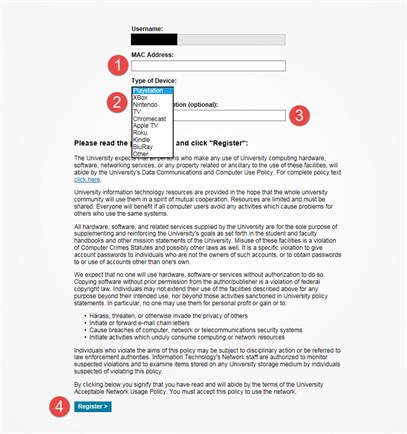
Click "Add New Device" on the Home Screen.

Step 1: Type your device's MAC Address (A MAC Address looks like: xx:xx:xx:xx:xx:xx)

Step 2: Choose what device you are registering (If not listed choose "Other")

Step 3: Name your device (example: My PS4)

Step 4: Click Register to finish

Delete a Device

Go to https://wifi.usi.edu and login with your USI username and password.

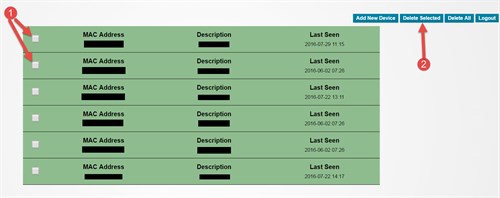
Step 1: Select the device(s) that you want to delete

Step 2: Click "Delete Selected"