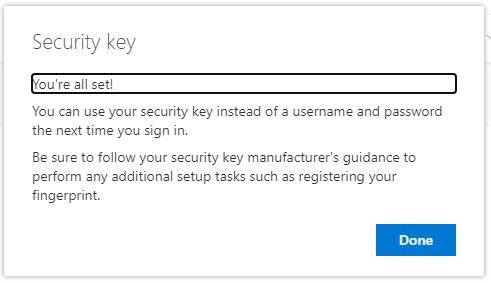
*If you already have a phone number or another verification method set up with Microsoft you can skip to "2. Set up MFA for Microsoft with a Security Key"
1. Login to your Microsoft account by going to https://myprofile.microsoft.com/
2. After logging into your account, select "Security Info" from the sidebar menu
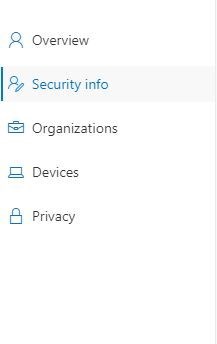
3. Click "add method" and select alternative number from the drop down menu
4. Enter a phone number and click "next"
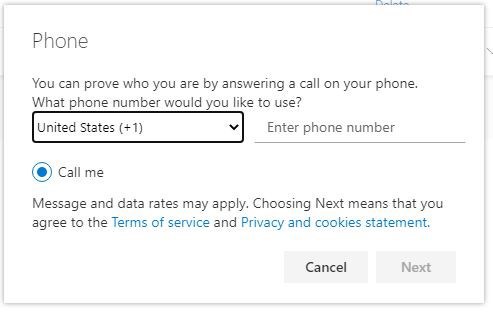
5. You will receive a phone call to the number you entered, follow the instructions in the call to complete the setup.
1. Login to your Microsoft account by going to https://myprofile.microsoft.com/
2. After logging into your account, select "Security Info" from the sidebar menu
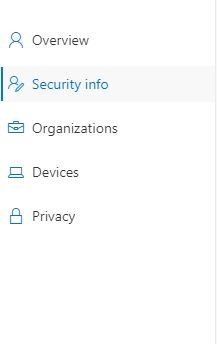
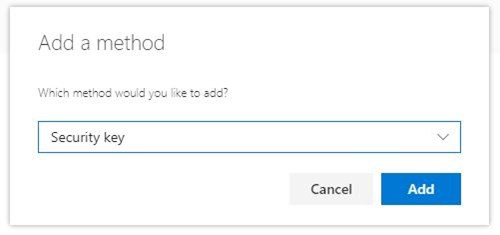
3. Click "add method" and select "Security Key" from the drop down menu. Click "Add"
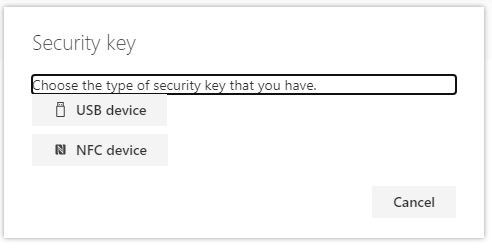
4. Select the type of Security Key you have
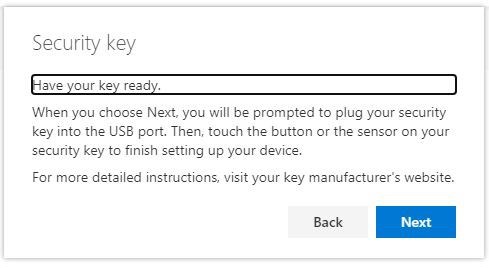
5. Have your security key ready and click "Next"
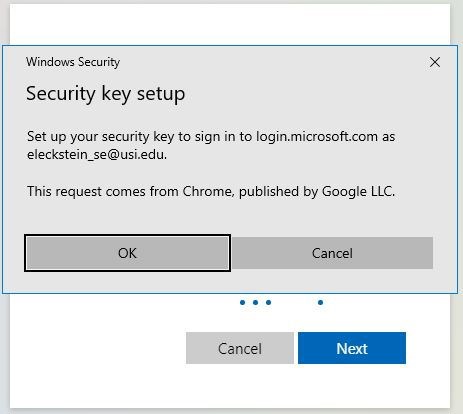
6. Confirm the account you want to attach to your security key and click "OK"
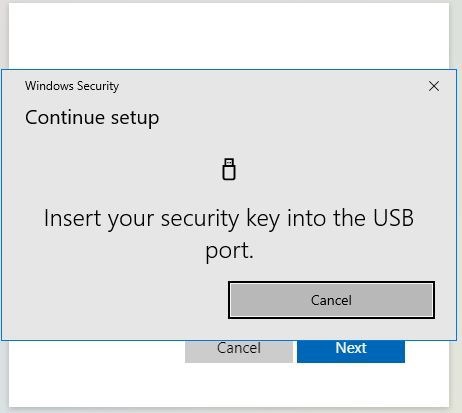
7. Insert your security key into the USB port on your computer
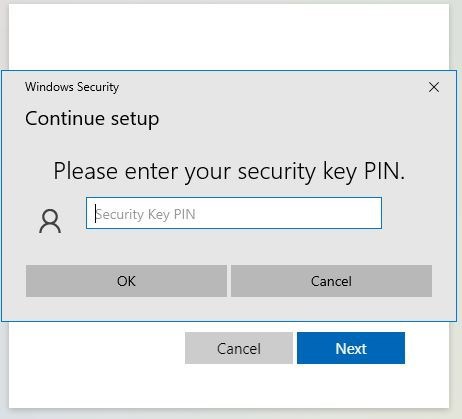
8. Enter the PIN you have created for your security key and click "OK"
*If you haven't created a PIN yet, follow the instructions on the screen to create a PIN. The PIN will be required to login into your account
The PIN can be any series of numbers, letters, and/or special characters
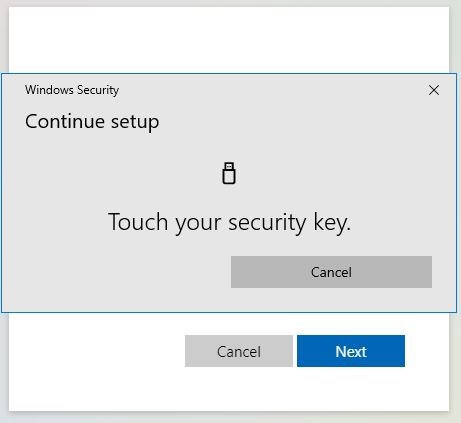
9. Touch the button or sensor on security key to finish setting up your device.
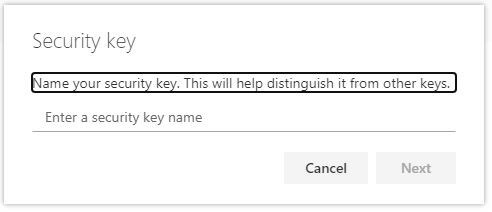
10. You will be prompted to name your security key, once you have named it click "Next"
11.